
Introduction
Don’t worry — this is one of the most common problems people face when setting up a new printer with their smartphone. The good news is, it’s usually simple to fix. In this guide, we’ll explain in plain English why your phone might not be recognizing your printer and show you how to fix it in just a few steps.
Don’t worry — this is one of the most common problems people face when setting up a new printer with their smartphone. The good news is, it’s usually simple to fix. In this guide, we’ll explain in plain English why your phone might not be recognizing your printer and show you how to fix it in just a few steps.
Whether you have an Android, iPhone, inkjet printer UK, or laser printer UK, this guide will help you connect and print smoothly.
Common Reasons Why Your Phone Can’t Find Your Printer
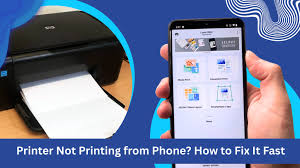
There are several reasons your phone might not recognize your printer. Let’s look at the most common ones:
1. Your Phone and Printer Are Not on the Same Network
If you’re using a wireless printer UK your phone and printer must be connected to the same Wi-Fi network.
- If your phone is on mobile data or a different Wi-Fi band (like 5GHz while the printer is on 2.4GHz), they won’t communicate.
- Always make sure both are connected to the same network name (SSID).
Tip: Go to your phone’s Wi-Fi settings to double-check the network name.
2. Printer Is Not Connected Properly
Sometimes, the issue is with the printer itself.
- Make sure the printer’s Wi-Fi light is on and steady (not blinking).
- If it’s a wired printer, check that the USB or Ethernet cable is properly plugged in.
Restart both your phone and printer to refresh the connection.
3. The Printer Is in the Wrong Mode
Many modern printers, like colour printers UK and photo printers UK, have multiple connection modes — such as Wi-Fi Direct, Bluetooth, and Access Point.
If your phone can’t detect the printer, it may be in the wrong mode.What to do
Check your printer’s small screen or manual for Wi-Fi Direct or Mobile Connection.”Turn this on, then connect your phone to the printer’s temporary Wi-Fi
4. The Printer App Isn’t Installed
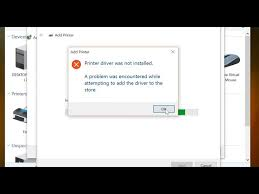
Most modern printers require a companion app to connect with your phone.
Here are some examples:
- HP printers: Use the HP Smart app.
- Canon printers: Use Canon PRINT Inkjet/SELPHY.
- Epson printers: Use Epson iPrint.
- Brother printers: Use Brother iPrint&Scan.
Without these apps, your phone might not detect the printer correctly. Download the right one from the Google Play Store or Apple App Store, open it, and follow the on-screen setup.
5. Outdated Software or Firmware
If your phone’s operating system or your printer’s software (firmware) is outdated, they may not “speak” to each other properly.
How to fix:
- Update your phone’s software in Settings > System > Software Update.
- Check your printer’s app for any available firmware updates.
This is especially important for wireless printers UK and all-in-one printers UK, which rely on up-to-date software to connect easily.
6. Bluetooth or USB Connection Problems
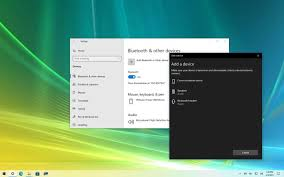
If you’re using Bluetooth or a USB cable to connect your printer:
- Ensure Bluetooth is enabled on both devices.
- Try removing and re-pairing the printer.
- For USB, make sure your adapter supports data transfer, not just charging.
Note: Some inkjet printers UK and laser printers UK do not support Bluetooth printing at all. Always check your model’s features first.
7. Printer Driver or Service Issues (Android Users)
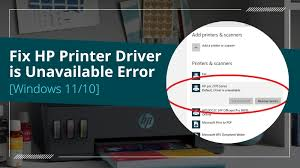
On Android phones, there’s something called a print service that helps the phone find printers. If this service stops working, your printer won’t show up.
How to fix it:
- Go to Settings > Apps > Printing Service.
- Clear the cache and data.
- Restart your phone and try again.
For iPhone users, ensure AirPrint is turned on and that you’re not using a VPN, which can block local connections.
Step-by-Step Fix: How to Connect Your Phone to a Printer
Here’s a simple, foolproof way to connect your phone to your printer — whether it’s an all-in-one printer UK, a photo printer UK, or a black and white printer UK.
Step 1: Check Power and Wi-Fi
Make sure your printer is turned on and connected to the same Wi-Fi network as your phone.
Step 2: Install the Printer App
Download your printer brand’s official app and open it. Most apps automatically detect printers on the same network.
Step 3: Add Your Printer
Follow the app’s setup instructions — usually, you’ll see an option like “Add Printer” or “Set Up a New Device.”
Step 4: Test Print
Once connected, try printing a small document or photo to test. If it prints, you’re all set!
Step 5: If It Still Doesn’t Work
- Restart your router, printer, and phone.
- Reinstall the printer app.
- Double-check you’re not connected to a “Guest” Wi-Fi network.
Extra Tips for Easy Mobile Printing
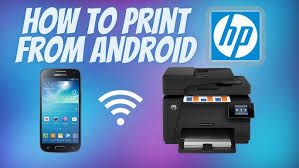
- Keep your firmware updated: This prevents future connection problems.
- Use the official printer app: Third-party apps can cause issues.
- Avoid VPNs: They can block your phone from seeing local printers.
- Label your Wi-Fi networks: So you always connect both devices to the same one.
If you often print from your phone, consider getting a wireless printer UK or all-in-one printer UK. These models are designed for easy smartphone use, perfect for both home and small office needs.
Choosing the Right Printer for Mobile Printing
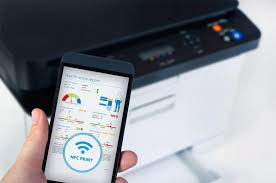
When shopping for a printer in the UK that works well with phones, here’s what to look for:
Wireless Printer UK
Best for people who print from multiple devices — phones, laptops, or tablets — without messy cables.
Printers for Home UK
Ideal for everyday printing tasks like homework, tickets, or recipes.
Colour Printer UK
Great for printing photos, charts, and creative projects.
Inkjet Printer UK
Perfect for printing high-quality images and photos at home.
Laser Printer UK
Better for fast and efficient text printing, ideal for offices or large print volumes.
Photo Printer UK
Designed specifically for producing high-quality photos directly from your phone.
Black and White Printer UK
Simple, budget-friendly option for everyday document printing.
When you buy a printer UK, make sure it supports mobile printing technologies like AirPrint (for iPhones) or Mopria/Google Cloud Print alternatives (for Androids).
Conclusion
If your phone isn’t recognizing your printer, it’s usually a small connectivity issue — not a big problem.
Most of the time, the fix is as simple as connecting both devices to the same Wi-Fi network, installing the right app, or updating your software.
Once everything’s set up, printing from your phone should be as easy as sending a message. Whether you’re using an all-in-one printer UK, a wireless printer UK, or a photo printer UK, these steps will help you get connected quickly and print without frustration.
Top 5 FAQs About
1. Why is my phone not connecting to my wireless printer UK?
Your phone and printer must be on the same Wi-Fi network. Check that your phone isn’t using mobile data or a “Guest” Wi-Fi network. Also, restart both your printer and phone. If the problem continues, reinstall the printer’s mobile app such as HP Smart or Canon PRINT.
2. How do I connect my phone to my printer at home in the UK?
To connect your phone to your printer at home, make sure both are on the same Wi-Fi network. Then, install the correct printer app for your brand (like Epson iPrint or Brother iPrint&Scan). Follow the on-screen setup to add your printer and start printing. This works for most printers for home UK and wireless printer UK models.
3. Why does my phone find other Wi-Fi devices but not my printer?
This usually happens when your printer’s Wi-Fi feature is turned off or not properly connected. Check that the printer’s Wi-Fi light is steady, not blinking. If needed, turn on “Wi-Fi Direct” or “Mobile Printing” mode from your printer’s menu.
4. Which printer is best for easy mobile printing in the UK?
If you print often from your phone, go for a wireless printer UK or all-in-one printer UK. They’re made for smartphone printing and work with both iPhones and Androids. Inkjet printers UK are great for photos and colour printing, while laser printers UK are faster for black-and-white documents.
5. Do I need a special app to print from my phone?
Yes, most modern printers require their official app for phone printing. For example, HP uses HP Smart, Canon uses Canon PRINT Inkjet/SELPHY, and Epson uses Epson iPrint. Installing the right app helps your phone recognize your colour printer UK or photo printer UK quickly and easily.
Disclaimer
The information provided in this article, Why Is My Phone Not Recognizing My Printer, is for general guidance and educational purposes only. While every effort has been made to ensure accuracy, printer models, phone settings, and software versions may vary. Always refer to your printer’s official user manual or contact the manufacturer’s support team for specific troubleshooting steps.